

Getting started
Configure roles and permissions
Your team doesn't all need the same reach. NestPoint gives each person one of three roles — Front Desk, Manager, or Admin — so the front desk sees a focused check-in view while admins reach every setting. This article covers adding people and picking their role; fine-tuning exactly what each role can touch lives in the admin guide.
The three roles
Every staff member has exactly one role. They build on each other: Manager can do everything Front Desk can, and Admin can do everything.
- Front Desk
- Daily check-in operations. This is the role for the people working the desk — checking members in, looking someone up, handling the everyday flow — without the settings and reports they don't need.
- Manager
- Runs the day to day without owning the account. Managers run the programs, including activities, rentals, communication, and reports, but don't touch billing, roles, or the organization-wide settings that belong to an owner.
- Admin
- Full authority. Admins reach every setting, including billing, roles, and permissions. The first account created for your organization is an Admin; keep at least one, and add others sparingly.
Add your team
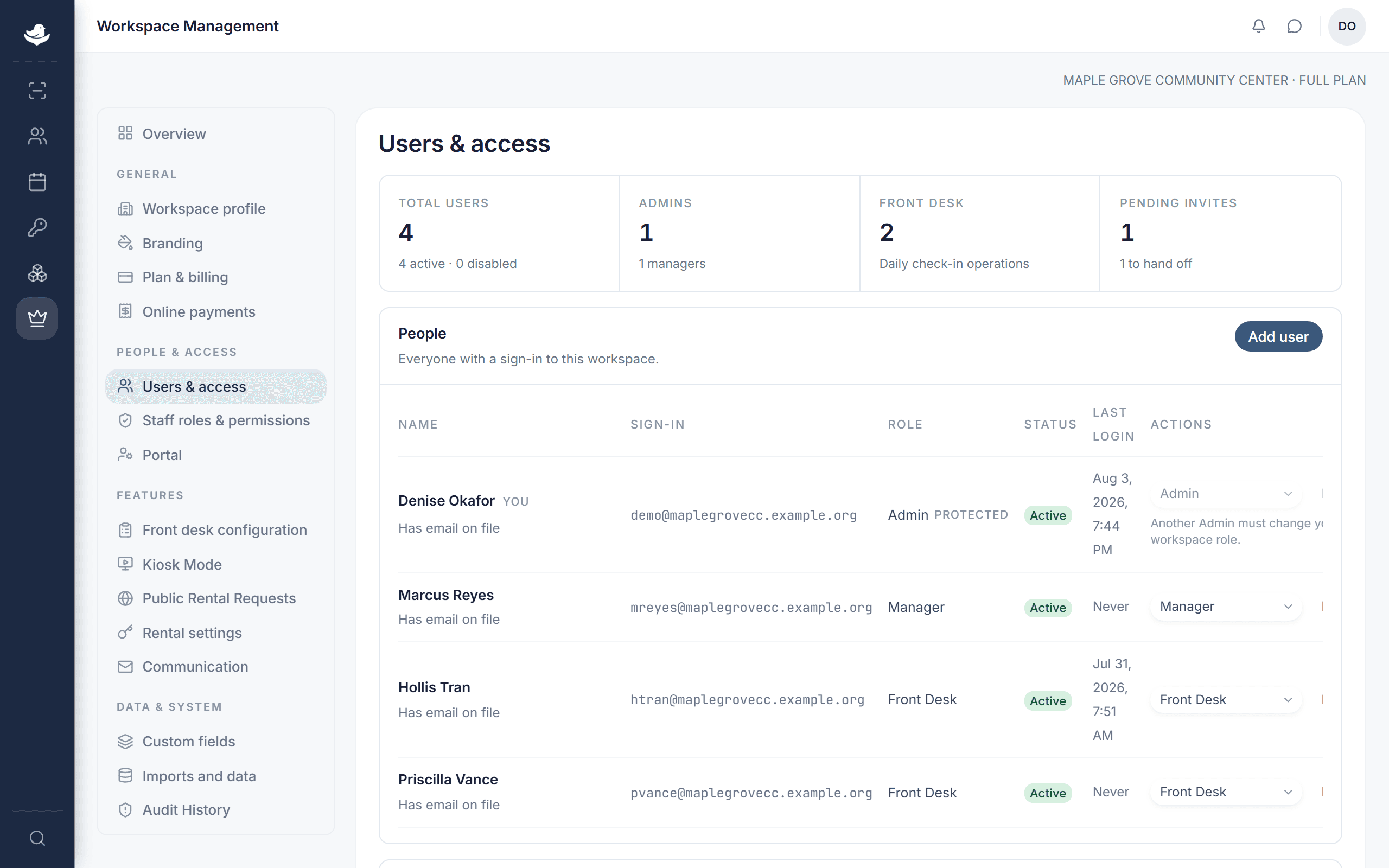
Open Organization settings and go to Users & access. There are two ways to bring someone on, and you choose their role as you do:
- Invite by email
- NestPoint emails them a link to join and set their own password. Best for anyone with a work email — it's the tidiest option, and you can resend or cancel a pending invite any time.
- Create the account for them
- NestPoint sets up the account and gives you a username and a starting password to hand over in person. Handy for a shared front-desk login or a teammate who doesn't check email much.
Change a role, or step someone back
Roles aren't set in stone. From the roster you can change anyone's role — NestPoint confirms the change first so it's never a slip. When someone leaves, disable their access rather than removing them: it locks them out immediately while keeping their history intact, and you can re-enable them if they come back.
Fine-tuning what a role can do
The three roles work well out of the box, but you can tailor them. In the separate Staff roles & permissions section you can adjust exactly which capabilities the Front Desk and Manager roles include — turning specific abilities on or off to match how your team divides the work. Admin is always full authority and isn't adjustable. For the full walkthrough, see Roles and permissions, in depth.