

Features · Members · Daily use
Find a member in the directory
The directory is your whole member roster in one place. When you need to pull someone up — to check a detail, edit their record, or see their history — this is where you start.
Search for someone
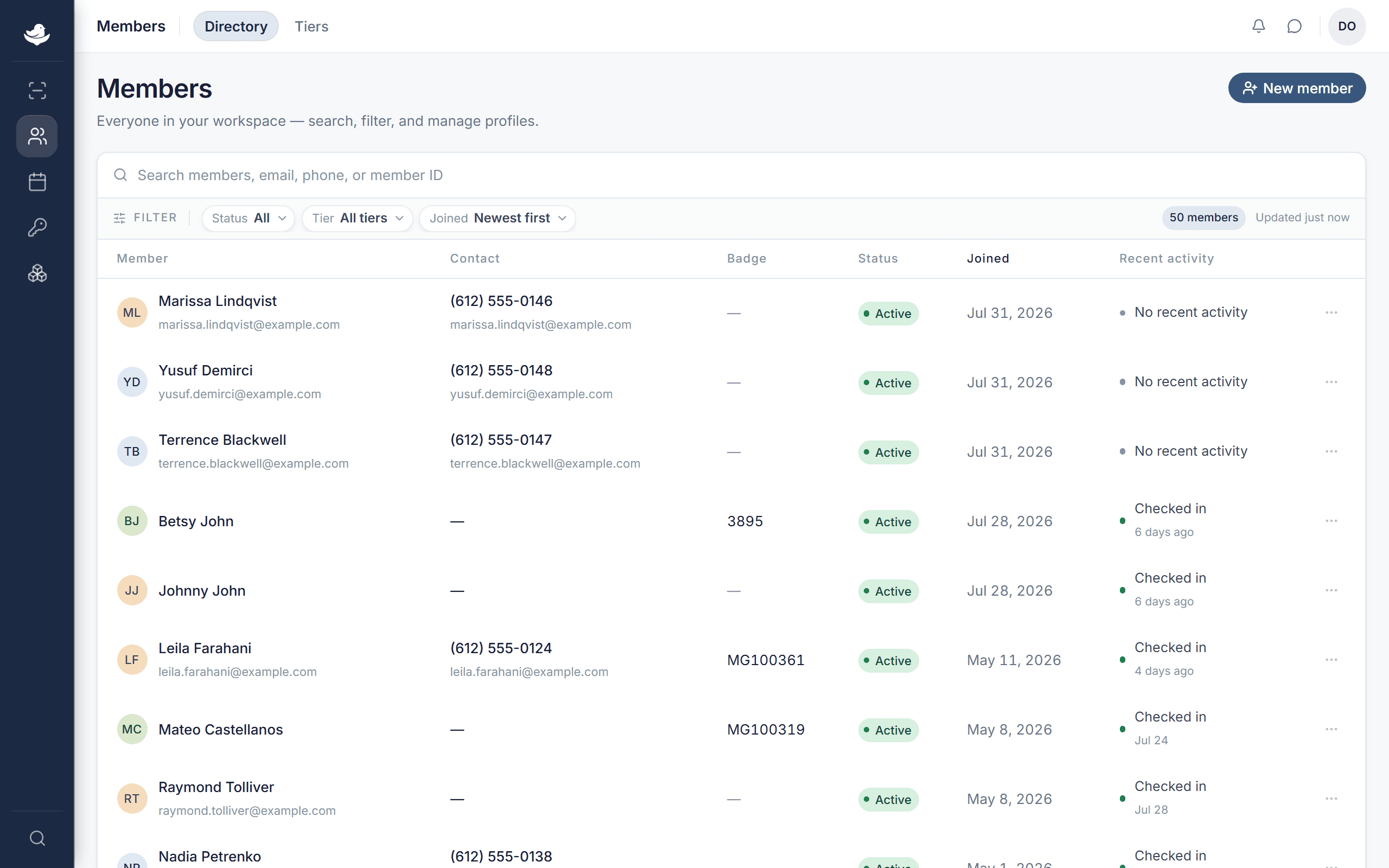
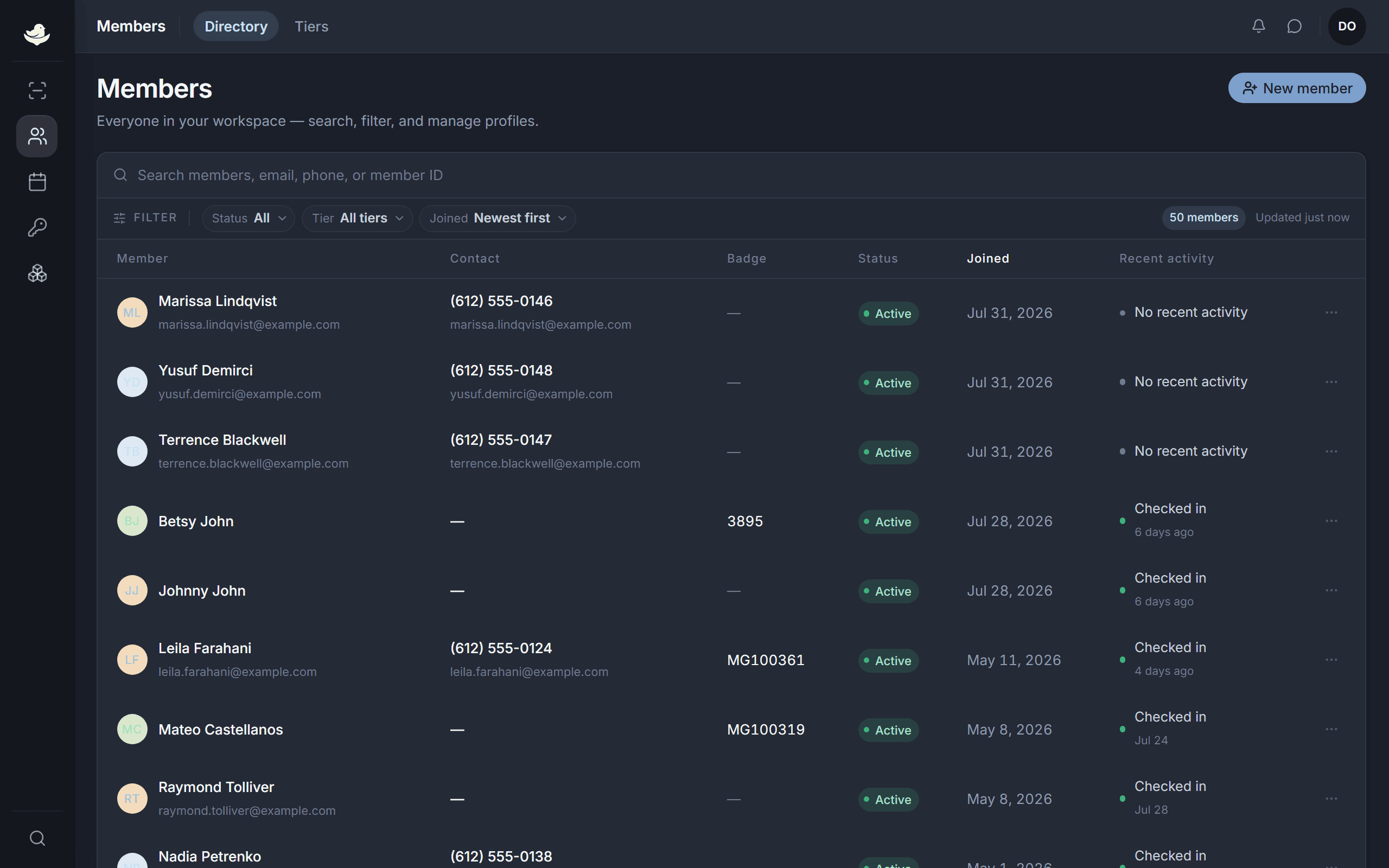
The search box at the top matches on name, email, phone, or member ID — its prompt reads Search members, email, phone, or member ID. The list narrows as you type.
Narrow the list with filters
- Status
- Show All, Active, or Inactive members. Inactive members are kept in the workspace but hidden from active rosters.
- Tier
- Limit the list to one membership tier. Only appears when your workspace uses tiers.
- Joined
- Sort order: Newest first, Oldest first, or Name (A–Z).
Read the columns
The table shows Member, Contact, Badge, Status, Joined, and Recent activity. Click a column heading to sort by it. Some columns tuck away on a narrow screen.
Open a member
Click a member's row.
A panel opens on the right with the essentials — email, phone, badge, status, and when they joined.
Press View profile to open their full record.
See Read and update a member profile for what's on the profile page.
When nothing matches, the table reads No members match the current filters. Clear a filter to widen the search.