

Features · Members · Daily use
Read and update a member profile
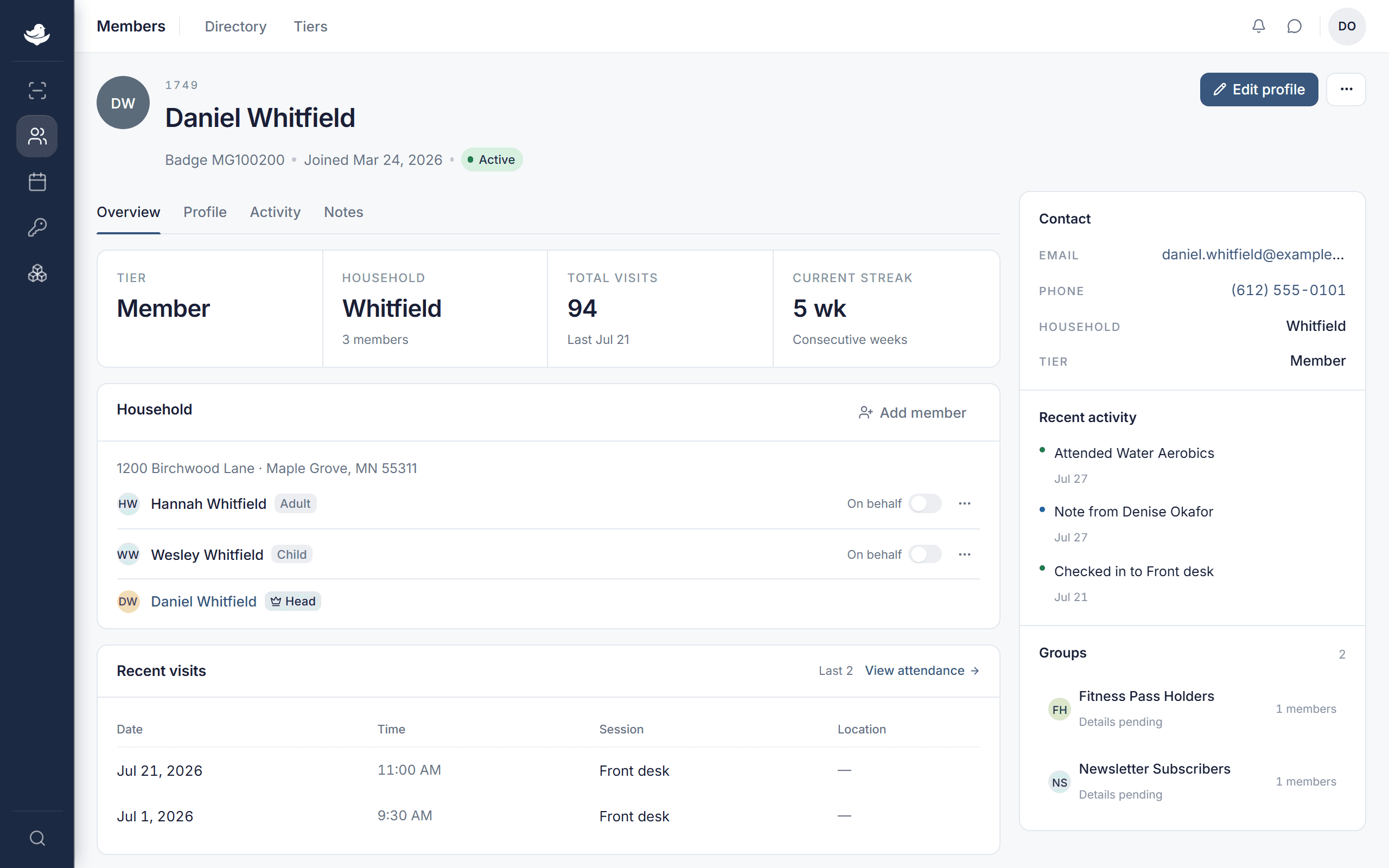
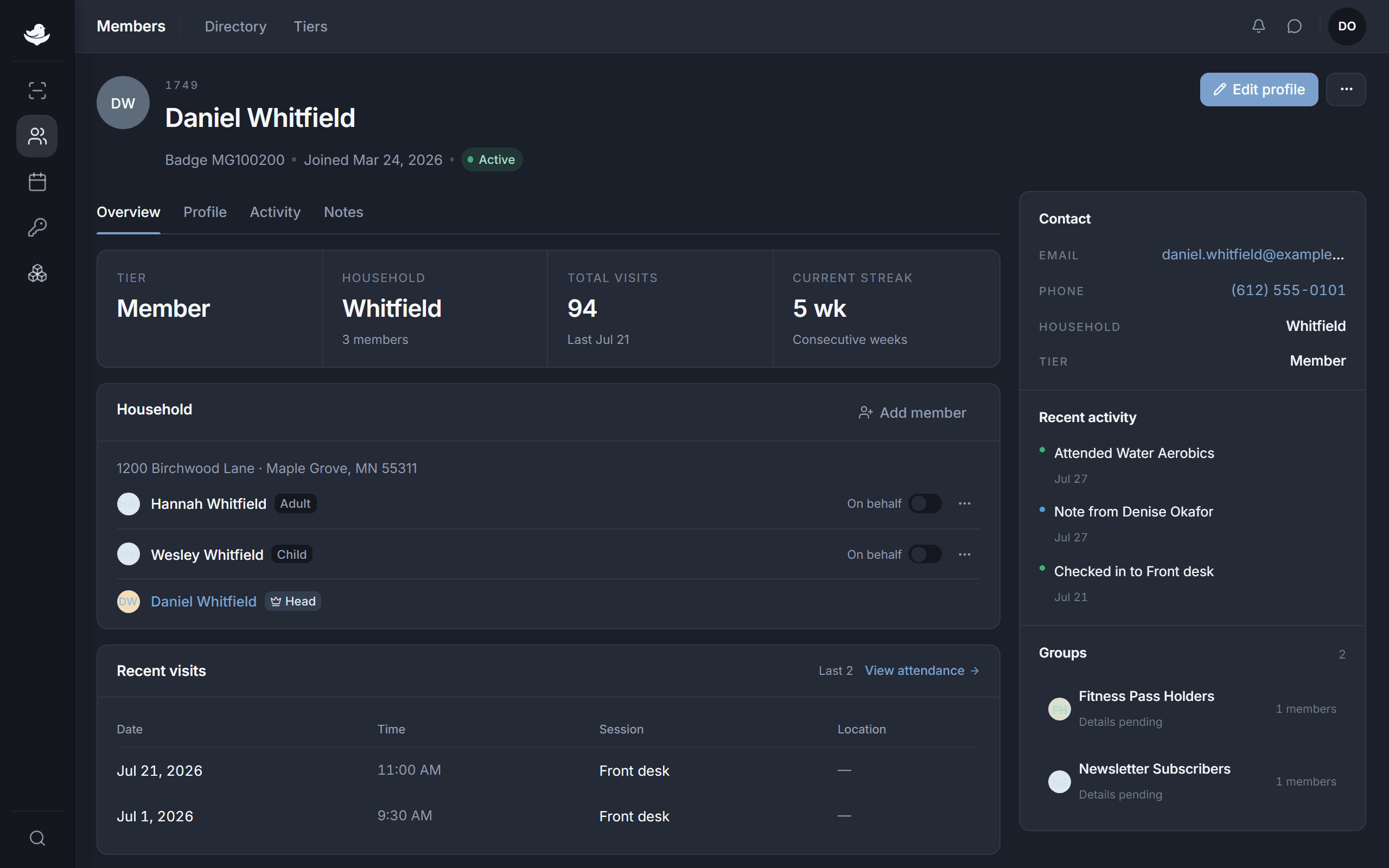
A member's profile gathers everything you know about them — contact details, household, tier, activity, and notes — on one page with tabs.
Find your way around the tabs
- Overview
- The key facts at a glance — contact, household, tier, and recent activity.
- Profile
- Where you edit identity, contact, address, demographics, tier, household, and badges.
- Activity
- A timestamped history of check-ins and other events.
- Notes
- Dated, attributed staff notes, plus badge assignments.
- Messages
- Inbound communication tied to this member.
Edit the profile
Open the Profile tab and edit fields in place.
From here you can set the member's Tier, link or Unlink a household, and manage their badges.
Press Save changes on the bar that appears.
It shows up as soon as you change something. A confirmation reads Saved {name}. — or press Discard to drop the edits.
Add a note
The Notes tab holds dated notes with the author attached — use it for anything the team should see with a timestamp. That's different from the free-form Profile notes field, which just travels quietly with the record.
Make a member inactive, or active again
Use the overflow menu in the header. Mark inactive takes the member off active rosters and stops them checking in, but keeps everything on their record. Mark active brings them back. A dialog like Mark {name} inactive? confirms before anything changes.